


Step 1:
Find the Email Invitation from Saklan Lodge, OA <no-reply-55@lodgemaster.oa-scouting.org>
with the Subject Lodge Portal Invitation
Note:
- Remember to check your spam/junk folder
The Membership Portal invite will look Like Photo 1.
Once opened you can select Claim Account and move to step 2.
Remember Your invitation will expire in 14 days.
Do not Delete this email until account is 100% Setup.

Member Portal Invitation Email (Photo 1)
Didn’t get the email or your code has expired?
- Candidates:
- It may take up to a week or more for information to be entered into our database from your unit election
- If you need the Invitation re-sent or did not get one please email us at admin@saklanlodge.org
- Members:
- If you did not receive one this means your contact information is not up to date and we need you to update your information by emailing admin@saklanlodge.org with your name and your Scouting Member ID
Do Not Delete the Email until the setup of your Member Portal is complete.
Step 2:
After selecting Claim Account you will be asked to log in or create an ArrowID. (Photo 2)
Most members will have to Create an ArrowID.
- Select Don’t have an account yet?
- Move to Step 2.1
If you already have an ArrowID, log in and skip to Step 3.

ArrowID Login Screen (Photo 2)
Step 2.1:
After Clicking Don’t have an account yet? you will be taken to a screen that will ask for the following information (Photo 2.1.1):
- First Name
- Last Name
- Email (Please use the email address the Invitation email was sent)
- Password
- Passwords must have at least one uppercase (‘A’-‘Z’).
- For a Stronger and more Secure Password, our Technical Team recommends using at least 8 or more characters with a mix of letters (Upper and Lower Case), numbers & symbols.
- Passwords must have at least one uppercase (‘A’-‘Z’).
After the above information has been entered click Register, you then will see a Confirm Email Message (Photo 2.1.2)
Check your email for a Confirm Your Account Email this email will come from ArrowID – Order of the Arrow, Scouting America <no-reply-id@oa-scouting.org> remember to check your spam/junk folder.
Once opened – The Email will Look Like Photo 2.1.3
- Click Confirm Account.
- It will Bring up a new window (Like Photo 2.1.4) with a thank you Message, use the link in the message to Login to your New Arrow ID Account.
- Login and Move to Step 3

ArrowID Create Account Screen (Photo 2.1.1)

ArrowID Confirm Email Screen (Photo 2.1.2)
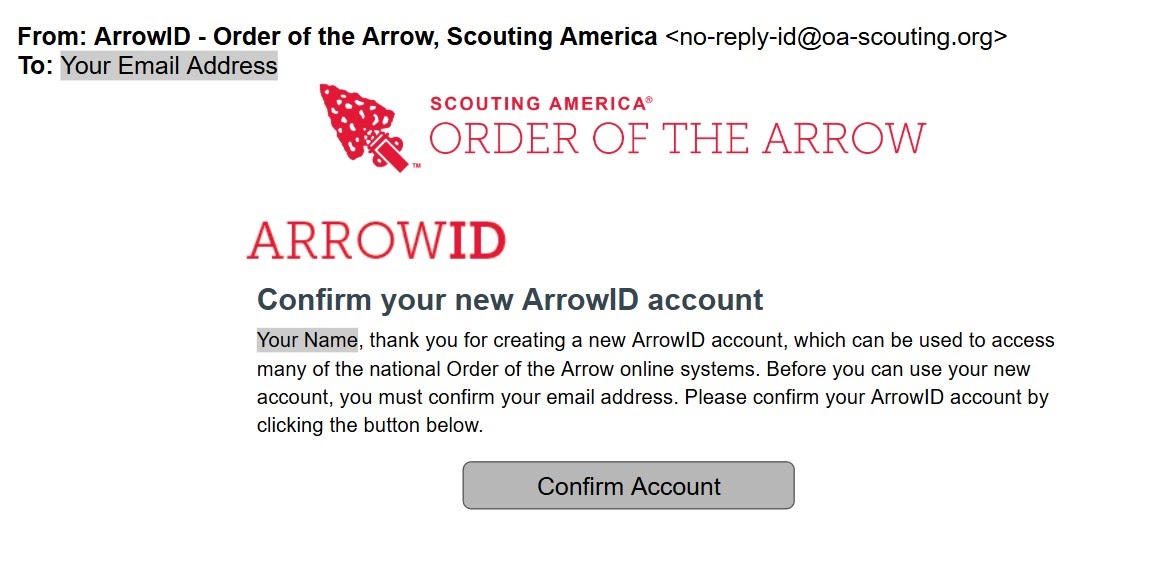
ArrowID Confirm Account Email (Photo 2.1.4)

ArrowID Confirm Email Screen 2 (Photo 2.1.4)
Step 3:
After signing in you will see a welcome back screen (Photo 3.1) with the message No Application Access and a Have An invite? button – Select the Have An Invite Button
A new window will pop up Called Add Application Select the Following:
Application:
- Member Portal
Council:
- 55- Silicon Valley Monterey Bay Council – Saklan Lodge
- Type 55 in the box and it should pop up below the box for you to select.
Code:
- Enter Code from Lodge Portal Invitation Email.
After the above has been filled in select ADD
Congrats your New Member Portal Account has been set up! (Photo 3.2)
We recommend selecting Set Default in order to skip this selection page during future log-ins.
To access your account just click on your name or the Arrow
- We recommend adding https://portal.oa-scouting.org/ to your bookmarks for easier access.
- You can also access the Member Portal by selecting the link in the top right corner of the Saklan Lodge Website.

ArrowID No Application Access (Photo 3.1)
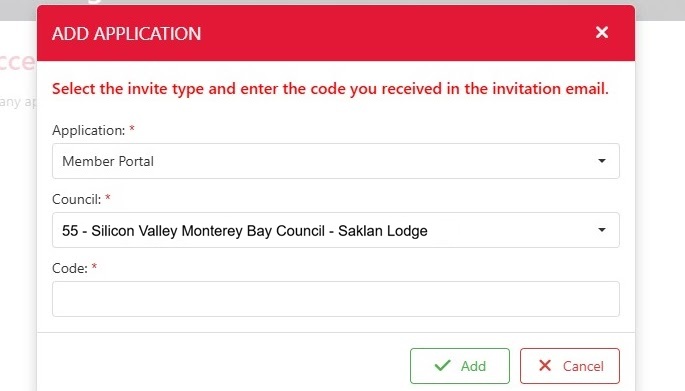
ArrowID Add Application (Photo 3.2)
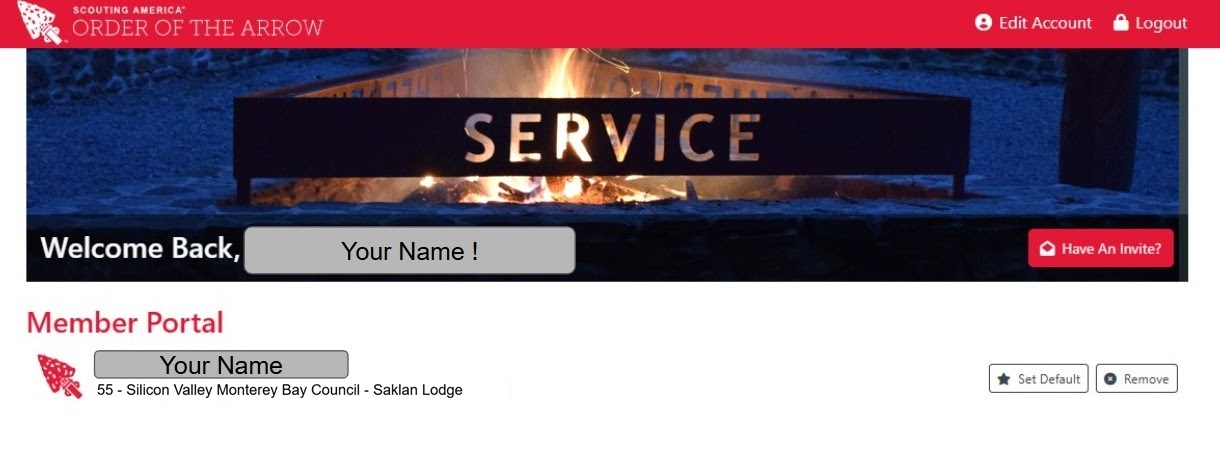
Member Portal Added (Photo 3.3)